
Manage Published OData Views
Inspect published data, understand load failures and safely plan metadata, refresh and availability changes.
Prerequisites
Sign in as an Instance Admin in a browser and select the correct instance. Identify the existing publication and any applications using it before making changes. Any Instance Admin can manage it; creation does not make it private to its creator.
Expected result
You can identify the publication's available data and latest load state, copy its address, and choose an appropriate management action. Inspecting details or a sample does not rebuild its data.
Actions
- Open Published OData Views, also available from the Views navigation menu.
- Search by name, endpoint or source, or choose Ready, Loading, Failed or Disabled. Search and filter counts cover loaded endpoints. Use Load more endpoints when shown to include further results.
- Open the publication's Actions menu and choose View details. Review its URL, description, copied source, published revision, availability, rows, last refreshed time and last load duration.
- For a populated publication, choose View sample data to inspect up to 25 rows from its active published result. Refresh sample rereads that result; it does not run the source View or refresh the endpoint's data.
- Use Copy endpoint URL beside the address when you need to connect a
consumer. The copied value includes
https://odata.landit.cloudeven when the catalogue displays a shorter path. Follow the connection guide for authentication. - If a change is needed, agree its effect with consumers first and use the relevant action below. You can finish a read-only inspection without taking any lifecycle action.
Success criteria
You know which data is currently available, whether the latest load succeeded, and which URL consumers should use. Any agreed change has the intended status and, if its URL or availability changed, consumers have been checked too.
Read the publication status
| Status or feedback | What it means |
|---|---|
| Queued, Populating, or Awaiting data | The first successful load is still outstanding. Do not assume the endpoint can serve data. |
| Ready | The publication has completed its initial load and is enabled. Check its refreshed time for freshness. Zero rows can be a valid result. |
| Refreshing | A later load is building. The existing successful result remains available until a successful replacement is activated. |
| Import failed | No successful first load is available. Inspect the failure before using Retry initial import. The retry uses the stored published definition. |
| Refresh failed with Previous data available | The latest later load failed. The last successful result remains available; its refreshed time has not become newer. |
| Disabled | The endpoint is disabled. Availability changes reach the OData service when its catalogue refreshes. Stored data and history are retained. |
Last load duration measures the last successful data build, excluding time waiting in the queue. It is not the time an external application takes to read the endpoint. A dash means no duration is available.
Refresh the published data
For an enabled, populated endpoint, Refresh data builds new results using its stored columns and filters. It does not adopt later changes to the saved View or import fresh records from the original source system. The instance's data needs to have been updated separately.
The action is unavailable while a build is in progress or the endpoint is disabled. After a failure, investigate it before retrying. If Landit reports that another administrator changed the publication, reload the list before trying again.
The catalogue toolbar's Refresh only reloads the list and metrics. It is different from Refresh data and from refreshing a connected report.
Edit a name or URL
Choose Edit endpoint to change Publication name, Unique URL name or Description (optional), then Save changes. This preserves the stored definition and published data. The same field limits as publishing apply.
Changing Unique URL name replaces the old route after the OData catalogue refresh. There is no redirect or permanent alias for the old URL. Copy the new URL and update every consumer. Changing only the publication's display name does not change its URL name.
If a concurrent edit is reported, close the panel and reload the list before editing again. If the result of a save is uncertain, inspect the current metadata before repeating it.
Disable or enable an endpoint
Disable endpoint removes it from the OData service on its next catalogue refresh and excludes it from future scheduled publication refresh tasks. It retains its stored definition, results and history. It does not delete copies already downloaded by consumers.
Enable endpoint makes its existing successful data eligible to be served again. Enabling alone does not prove that the data is current; check its status and refreshed time. These controls change availability for every consumer. The management menu does not offer a delete action.
If the catalogue or metrics cannot load
Endpoints unavailable means the list could not be loaded. It does not mean the instance has no publications, that every publication failed, or that all existing consumer connections have stopped. Use the catalogue's Refresh to retry loading it. If the problem continues, report the selected instance, time and displayed message to your Landit administrator or support contact. Avoid sharing credentials in that report.
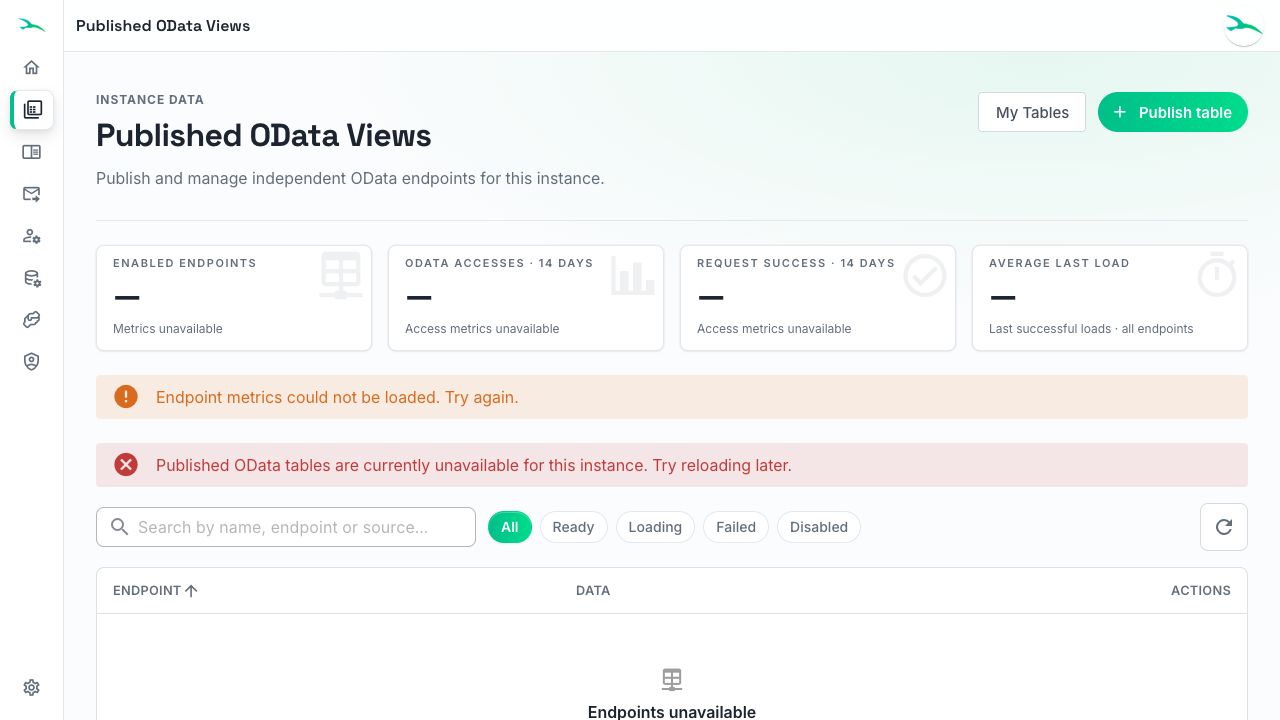
The metric cards cover the instance, independently of loaded list pages. Access counts and success rates describe recorded OData data requests over 14 days; unavailable metrics are not zero accesses. They are not a guarantee that every consumer request was recorded.