
Share a saved View through OData
Understand what a Published OData View shares, who can manage it and how its data stays current.
Put a saved result within reach of another application
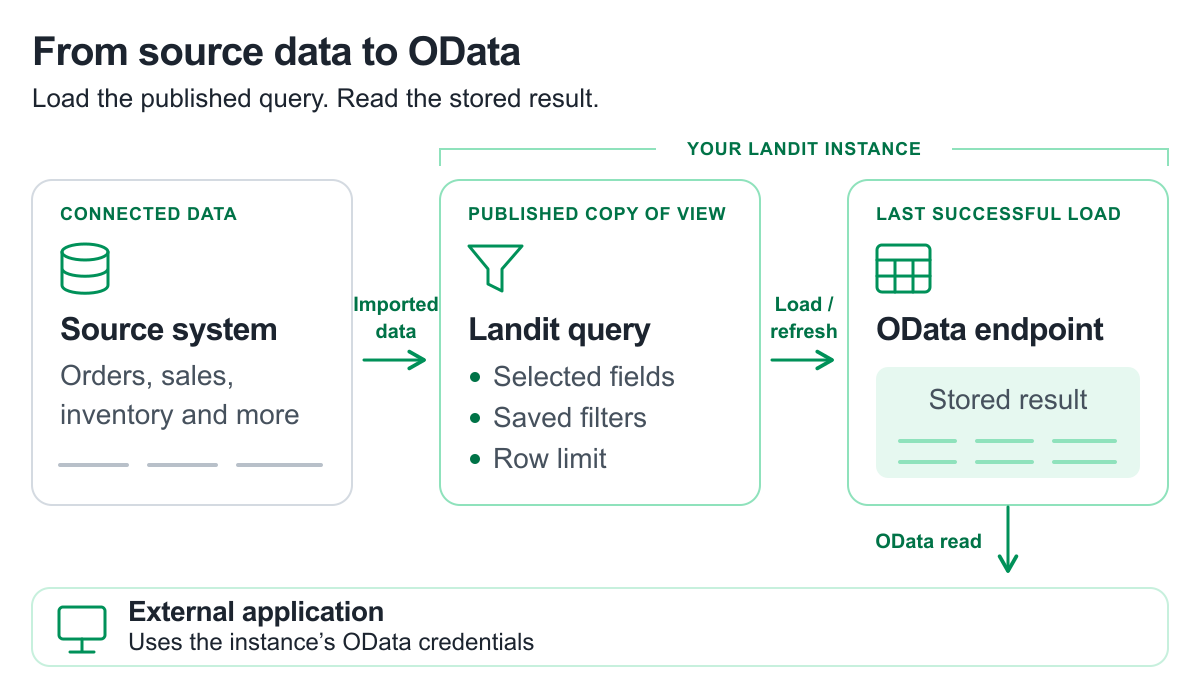
A Published OData View gives an external application an OData address for reading the results of a saved Landit View. For example, you might expose a saved sales summary to a reporting tool without rebuilding its selected fields and filters there.
You start with a View already saved under Views. Publishing copies its definition into an independent endpoint for the selected instance. Landit loads the result in the background. Once that first load succeeds, an authorised OData client can read the published data.
The Publish as OData drawer uses Saved view to identify the source. Use Views to return to your personal catalogue.
Know what you are sharing
The publication keeps the saved columns, filters and applicable row limit from the definition you publish. It is separate from your personal saved View:
- Editing, renaming or deleting the original View does not update or remove its endpoint.
- Refresh data reruns the published definition against the instance's data. It does not pick up later edits to the saved View.
- Edit endpoint changes its publication name, URL name or description. It does not replace its columns or filters.
Saving a View alone does not publish it. Publishing to the Library is a different action from publishing an OData endpoint.
The saved View must contain managed Landit columns and complete filter values. Excel formula columns cannot be published through this workflow. Worksheet-linked filters need saved, resolved values; a browser cannot obtain values from an open workbook. Explicit row limits must be between 1 and 100,000. A saved unlimited setting is bounded at 100,000 published rows.
OData field names are derived from column labels, so they can differ from the labels shown in Landit. The published result also has a generated RowId key; do not treat that generated key as a lasting business identifier across refreshes.
Separate management access from data access
You must be signed in as an Instance Admin in a web browser to publish or manage endpoints. The API checks this permission too. You publish from your own saved Views, but the resulting endpoint belongs to the instance: any Instance Admin can manage it, including one created by another administrator.
External applications use the instance's OData credentials, through HTTP Basic authentication. They do not use your Landit sign-in password. Copying the endpoint URL does not copy credentials or make the data anonymous. Treat the credential pair as instance access and share it only with authorised people and integrations.
Understand when the data changes
There are three different refresh operations:
| Operation | What it does |
|---|---|
| Catalogue Refresh | Reloads the endpoint list and metrics in Landit. |
| Endpoint Refresh data | Builds new results from the stored published definition. A successful load replaces the published data. |
| Refresh in an external application | Reads the currently available published data into that application. It does not run the saved View or start Landit's data imports. |
Landit's data-processing workflow also schedules refreshes for enabled, initially populated publications. This is not a promise of a fixed refresh interval: timing depends on the instance's data processing and successful loads. Check the publication's refreshed time before relying on recent source changes.
A failed later refresh leaves the last successful data available. A failed first load has no successful result to serve. See Manage Published OData Views for the status labels and recovery choices.
Choose your next step
Publish an existing saved View, manage an existing endpoint, or connect an external application.