
Find and download an Excel report
Explore the public Report Gallery, check a report's requirements and download its workbook.
Prerequisites
Use a web browser and an Excel installation that can open the downloaded workbook. You can browse published reports without signing in. A report's availability and required source systems depend on the published catalogue.
Expected result
You have downloaded a report workbook after checking its preview and source requirements. Downloading a workbook does not connect it to your organisation's data or grant access to a demo instance.
Actions
- Open the Report Gallery.
- Search for the outcome you need, or filter by a source system. If nothing matches, clear the search or source filter and browse the available reports.
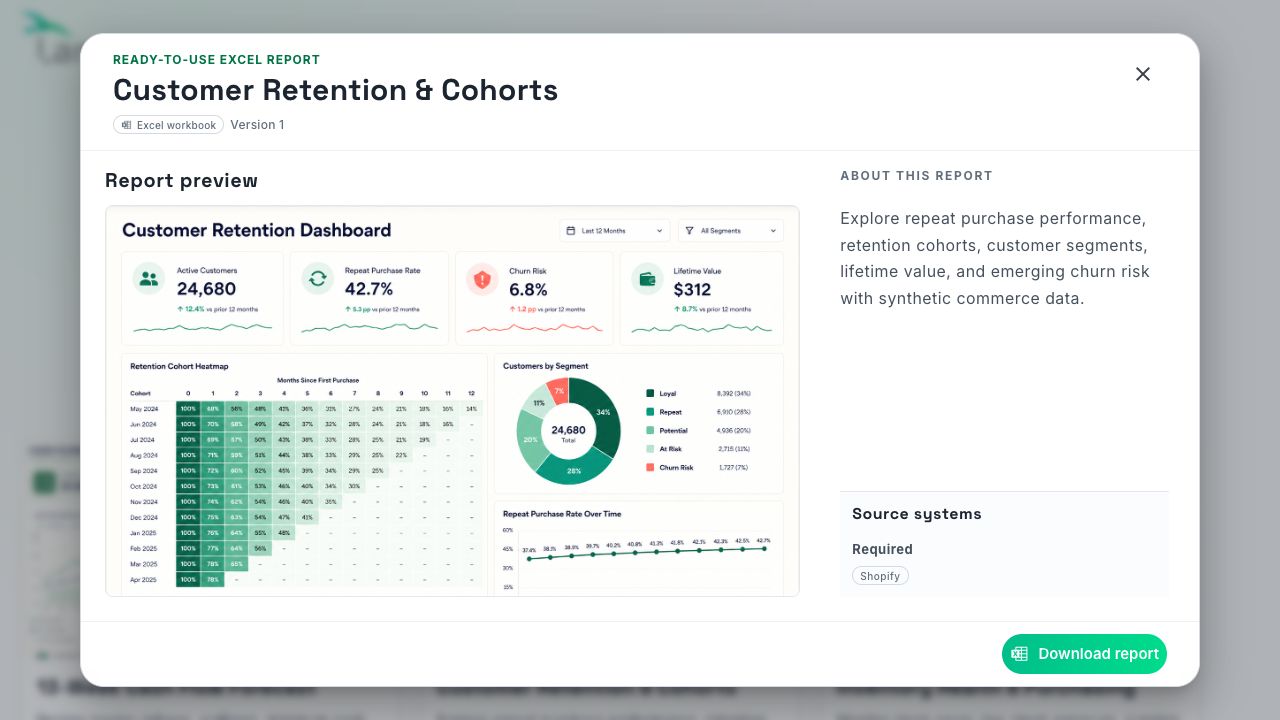
- Open a report to read About this report and inspect Report preview. Check its Required and, when listed, Optional source systems.
- Choose Download report and open the downloaded workbook in Excel.
- Before refreshing it, confirm that you have the Landit add-in and access to an instance with the data the report requires. For sample data, follow Explore a demo instance.
Success criteria
The selected workbook has downloaded and opens in Excel. You understand which source systems are needed to refresh it. A screenshot or existing workbook value is a preview, not evidence that your own data has been refreshed.
If the download fails
Choose Try download again to request a fresh link. If the catalogue or previews cannot load, try again later. Help articles remain readable without a Landit sign-in, but the Report Gallery needs its catalogue service to be available.