
Publish a saved View as an OData endpoint
Select an existing saved View, check its publication settings and wait for its first data load.
Prerequisites
Sign in to Landit in a web browser as an Instance Admin and select the instance whose data you intend to share. Have a View already saved under Views. This guide starts from that saved View; it does not cover creating one.
The View needs managed Landit columns, complete filter values and a valid row limit. Excel formula columns cannot be published. Resolve any worksheet-linked filter values before saving. Check the publication limits before continuing.
Expected result
An independent OData endpoint is saved for the selected instance. Its initial data load finishes before you give its URL to consumers. Later edits to the source View do not change the publication.
Actions
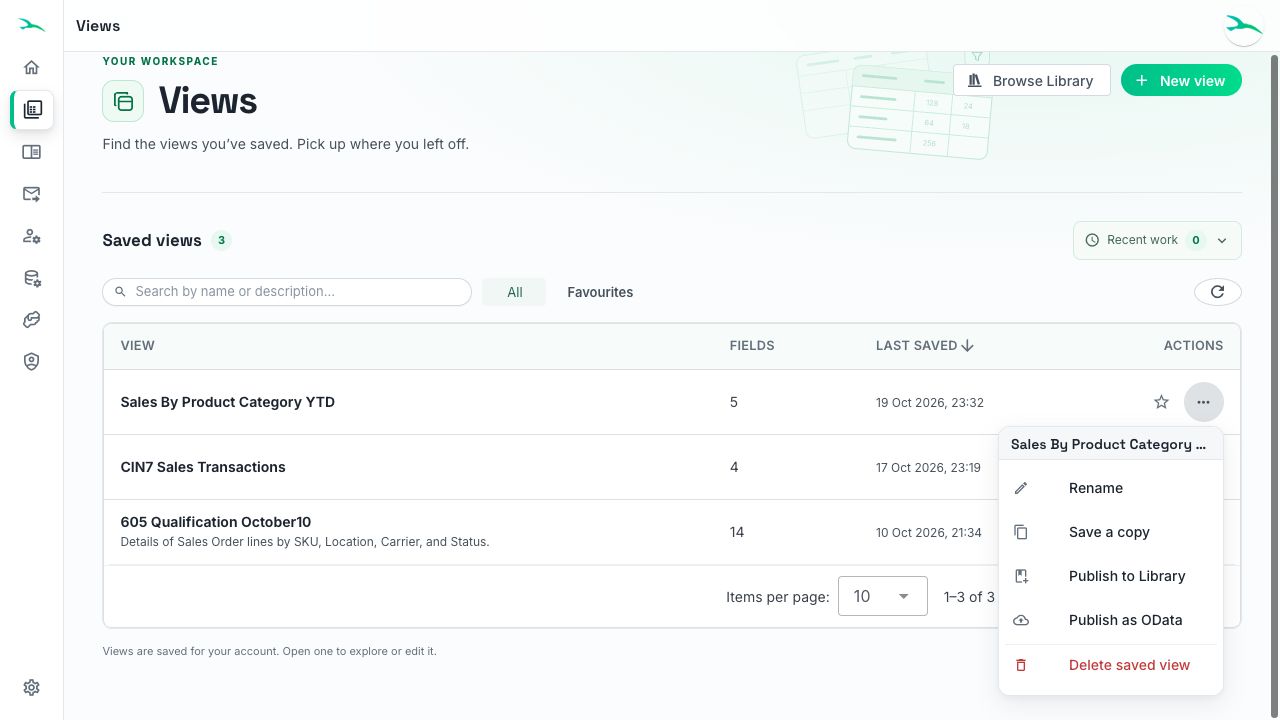
- Open Views and find your saved View. Open its Actions menu and choose Publish as OData. This opens Published OData Views with the source already selected.
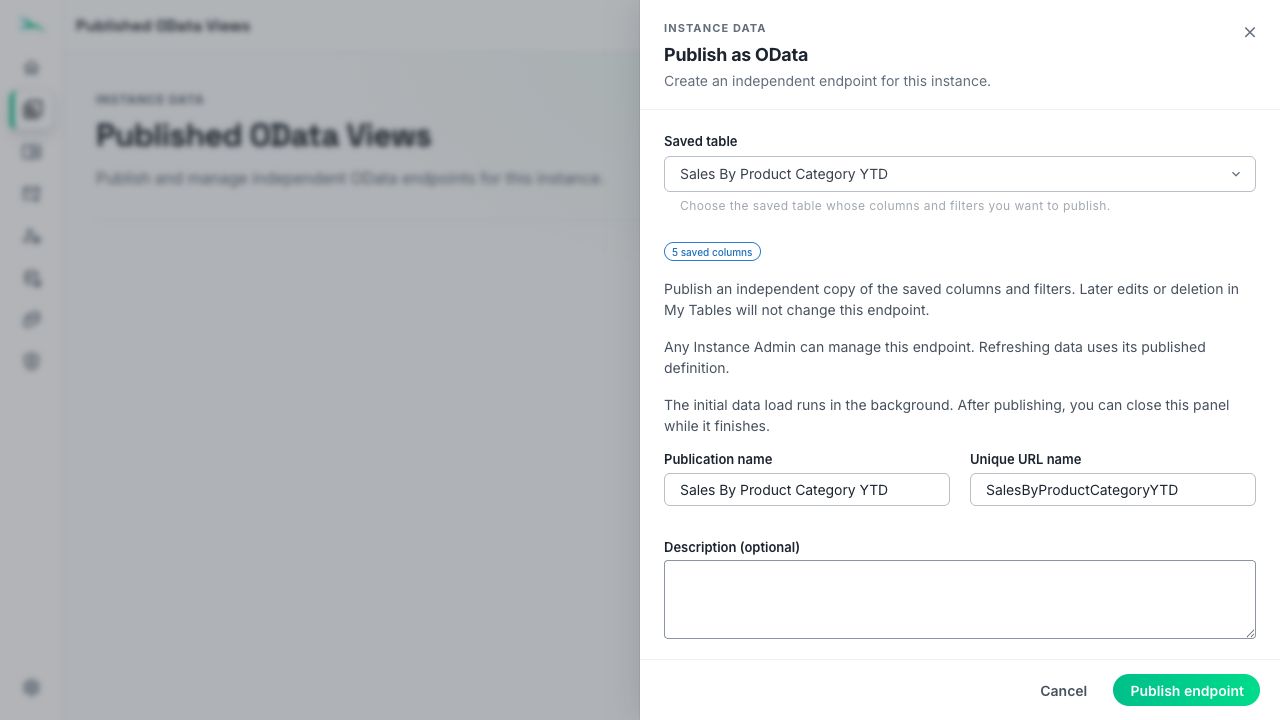
- Check the Saved view selection and saved-column count in the Publish as OData drawer. Alternatively, open Published OData Views, choose Publish view, and select a Saved view. You can search the loaded saved Views. Use Load more saved views if it appears and the one you need is not yet loaded.
- Review these fields. Their defaults come from the selected View, but the publication has its own name and URL.
| Field | What to enter |
|---|---|
| Publication name | A recognisable display name, from 1 to 128 characters. |
| Unique URL name | A name beginning with an ASCII letter, followed only by letters, numbers or underscores, up to 128 characters. It must be unique within this instance, regardless of letter case. |
| Description (optional) | Useful context for other administrators, up to 1,000 characters. |
- If you want to inspect the source result, scroll to Data sample and choose Preview data. This runs the saved query with its filters and returns up to 25 rows. It does not publish anything. A preview error needs investigation; it is not confirmation that the future endpoint will contain usable data.
- When the source and settings are correct, choose Publish endpoint once. Landit saves the definition and starts the initial data load in the background. The endpoint is not ready for consumers until that load succeeds. Once the publication is saved and loading, you can close the drawer while it finishes.
- Find it in Published OData Views and check its status, row count and refreshed time. Wait for Ready before connecting an external application.
Success criteria
The intended publication appears in the intended instance and reaches Ready. Its data matches the saved selection you meant to share. Use View sample data to inspect up to 25 rows of the published result. A successful result can contain zero rows; check whether the saved filters explain that outcome.
The preview form and a copied URL alone do not demonstrate a completed initial load or a successful authenticated connection.
If publishing needs attention
- If Landit reports that the saved View changed, return to Views, reload it and reopen Publish as OData. The publication must use the saved revision you reviewed.
- If the URL name is already in use, choose a different name. Other administrators share the instance's endpoint names.
- If the outcome is unconfirmed, use Check same publish request, or Resume publish request if you closed the drawer. This checks the original request; do not start another publication just because the response was lost.
- If the publication is saved but its first load fails, inspect its existing status. Retry initial import uses that publication's stored definition; creating another endpoint is not required to retry. Coordinate any retry with the administrator responsible for the failure.
See management and failure states for what each status means. If the catalogue itself is unavailable, you cannot infer whether a publication exists from the empty screen.